
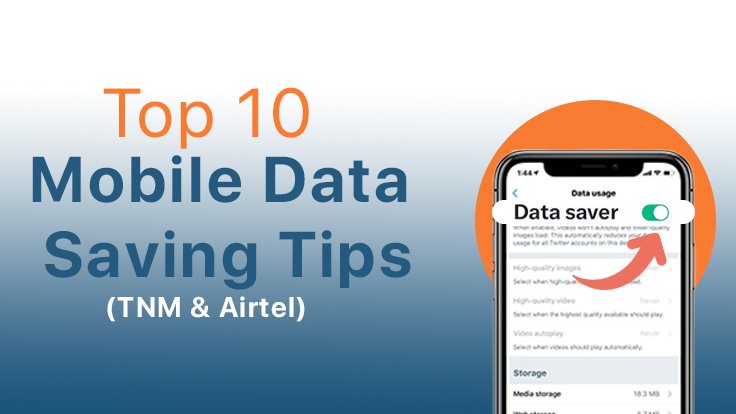
Mobile data in Malawi isn’t cheap, and if you’re on TNM or Airtel, you already know how fast bundles can disappear just by scrolling WhatsApp, Facebook, or browsing the web. The good news? With a few smart settings and habits, you can stretch your data much further without sacrificing your online life.
This simple guide shares practical, real-life tips you can start using today to save mobile data while browsing.
1. Turn On Data Saver Mode (Android & iPhone)
Why it helps: Data Saver reduces background data usage and limits how much apps use when you’re not actively on them.
On Android:
- Go to Settings → Network & Internet → Data Saver
- Turn Data Saver ON
On iPhone:
- Go to Settings → Mobile Data → Mobile Data Options → Low Data Mode
- Turn Low Data Mode ON
2. Use Lite Versions of Apps
Lite apps are designed for slow networks and low data usage.
Try these:
- Facebook Lite instead of Facebook
- Messenger Lite instead of Messenger
- Opera Mini instead of Chrome
These apps load faster and use significantly less data.
3. Set Browsers to Data-Saving Mode
If you browse a lot, your browser choice matters.
Best options:
- Opera Mini – Built-in data compression
- Google Chrome – Turn on Lite Mode / Data Saver
How to enable in Chrome:
- Open Chrome → Settings → Lite Mode (or Data Saver)
- Turn it ON
4. Control App Background Data
Many apps use data silently in the background.
On Android:
- Go to Settings → Apps → Select App → Mobile Data
- Turn OFF Allow background data usage
On iPhone:
- Go to Settings → Mobile Data
- Scroll down and turn OFF data for apps you rarely use
5. Reduce Social Media Data Usage
Social media apps are the biggest data eaters.
WhatsApp:
- Settings → Storage and Data
- Set Media Auto-Download to Wi‑Fi only
- Turn OFF Auto-download on mobile data
Facebook & Instagram:
- Settings → Data Saver → Turn ON
- Turn OFF Autoplay Videos
6. Download on Wi‑Fi, Browse Offline
Whenever you’re on Wi‑Fi:
- Download YouTube videos
- Save Google Maps areas offline
- Download music on Spotify
- Update apps from Play Store/App Store
Then enjoy them later without using mobile data.
7. Block Ads and Trackers
Ads use data too.
Use:
- Brave Browser (blocks ads by default)
- Opera Mini with ad blocking ON
- A DNS-based ad blocker (like AdGuard DNS)
This speeds up browsing and saves data.
8. Limit Video Streaming Quality
Video streaming burns bundles fast.
YouTube:
- Settings → Video Quality Preferences
- Set mobile data quality to Low (144p–360p)
Netflix:
- App Settings → Data Usage
- Set to Low or Medium
9. Turn Off App Auto-Updates on Mobile Data
App updates can eat your data without warning.
Play Store:
- Settings → Network Preferences
- Set Auto-update apps to Over Wi‑Fi only
App Store (iPhone):
- Settings → App Store
- Turn OFF Automatic Downloads under Mobile Data
10. Track Your Data Usage Daily
Awareness is key.
On Android:
- Settings → Network & Internet → Data Usage
On iPhone:
- Settings → Mobile Data
Check which apps use the most data and adjust their settings.
Bonus Tips for TNM & Airtel Users
- Use night bundles for downloads
- Activate weekly/monthly bundles instead of daily
- Avoid hotspot sharing unless necessary
- Turn off mobile data when not in use
Final Thoughts
Saving mobile data on TNM and Airtel doesn’t mean staying offline. With the right settings, smart apps, and good habits, you can enjoy browsing, chatting, and streaming while spending less on bundles.
Start with just 3–4 tips from this guide today, and you’ll notice the difference within a week.

Leave a Reply